VTOKU Cam turns your iPhone or iPad into a virtual-production camera. This guide covers your first launch: permissions, placing an avatar, and finding your way around the interface.
1. Permissions
On first launch the app asks for a few permissions. Each is used only for what it says, nothing is sent to VTOKU (see the Privacy Policy).
- Camera, required for ARKit world tracking and the live AR view.
- Local Network, required to stream to and from other apps on your LAN (Warudo, NDI, FreeD).
- Microphone, only used when you record a take with audio.
- Add to Photos, only used to save recorded takes.
If you skipped a prompt: grant it later in iOS Settings → VTOKU Cam. Local Network in particular must be on for any streaming to work.
2. Place your avatar
Point the camera at the floor and move the device gently so ARKit can find a surface. Tap to set an anchor where you want your avatar to stand. The avatar is parented to a movable stage on a fixed world anchor, so it stays put as you move the camera around it.
To load your own model, see Avatars and faces.
Outdoors or in a large room? If the scene starts to drift, turn on Outdoor mode under Settings › Camera. It tracks from the camera and motion sensors without LiDAR, which stays steady when you are away from walls. See Outdoor mode.
3. The camera interface
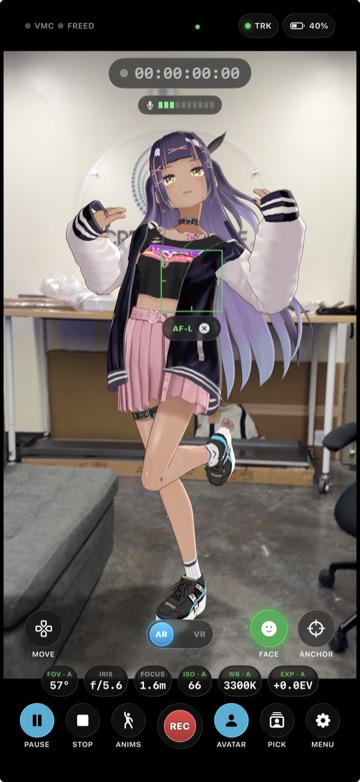
The interface follows a real cinema-camera layout. Everything is off by default; turn on only what you need:
- Senders, enable VMC/OSC and/or FreeD to stream camera pose (Pose streaming).
- NDI, send your AR feed or receive an NDI source (NDI in & out).
- Lens, focal length / FOV controls; real FOV is derived from the device's camera intrinsics.
- Record, capture a take to your Photos (Recording).
4. Connect to your computer
The most common setup is streaming camera motion into Warudo. Head to Connect to Warudo next.
Next: Connect to Warudo →